
Opening the editor
From a completed analysis, tap the purple "Optimize Page Content" button. Generation may take up to a minute for larger pages, but typically finishes in a few seconds. The optimizer opens as a full working panel over the report, with "Copy All," .md, and .csv export options at the top for teams that work outside RankAbove.
Custom Instructions: your master prompt
At the very top of the optimizer sits an open field labeled “Optional Custom Instructions.” Treat it as a master prompt: describe your brand voice, target audience, a specific language, or a compliance rule once, then click “Re-process Content” to apply it across every recommendation on the page at the same time.
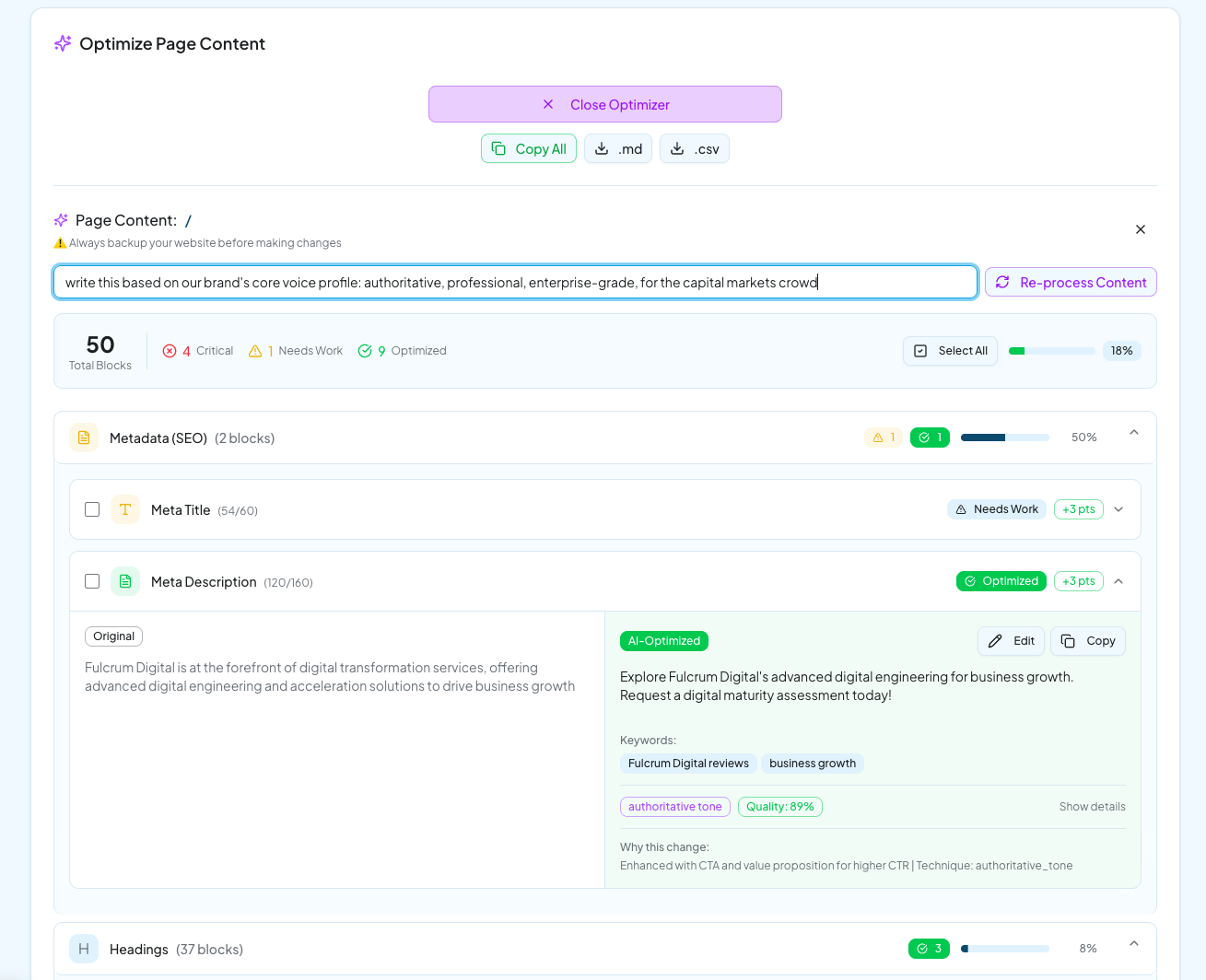
A single instruction like "write this based on our brand's core voice profile: authoritative, professional, enterprise-grade, for the capital markets crowd" reshapes every block on the page in one pass. This is dramatically faster than editing each recommendation by hand, and it works the same way as the page-wide rules described in Using the Page Rule Content Agent.
Reading the block summary
Just below Custom Instructions, a summary bar shows the Total Blocks RankAbove evaluated on the page, split into Critical, Needs Work, and Optimized, alongside a Select All checkbox and an overall completion percentage. Use it as a bird's-eye view of how much of the page still needs attention, and work down from Critical first.
Where the categories map
Critical, Needs Work, and Optimized mirror the same severity language used on the Dashboard’s score bands, so a page that reads Critical here is usually the same page sitting in your Underperforming Pages list.
Reading a recommendation block
Recommendations are grouped by element, starting with Metadata (SEO): Meta Title and Meta Description each get their own block, with your Original text on the left and AI-Optimized text on the right. Every block carries a point badge showing how many points the change is projected to add to a specific score, SEO for rankings, GEO for citations, AEO for direct answers, plus a Quality percentage and the keyword tags it targets. Expand "Show details" to see exactly why the change was made, down to the technique applied.
The same pattern continues through Headings and every other text element RankAbove found on the page, block by block.
Editing before you ship
Any user can review and edit the AI-optimized side of a block directly with its Edit button, and Copy a single block on its own. Editing lets you further control brand voice, add or remove specific messaging, and tailor a recommendation before it goes to review or gets applied to your site.
Custom Instructions vs. editing a block
Reach for Custom Instructions when a change should apply everywhere on the page, voice, audience, language, or a compliance rule. Edit a block directly for a one-off tweak that only that block needs.
Image optimization: alt text
Below the text recommendations sits a section for image optimization, focused on Alt Text. This one factor matters twice: it is a critical accessibility signal (see Accessibility and search visibility) and, separately, a direct SEO factor, since search engines cannot see an image; they read its description.
Structural Improvements
Beneath image recommendations is "Structural Improvements," changes that go beyond rewriting existing text: consolidating multiple H1 tags into one, or adding an FAQ section with schema markup. Each suggestion shows its expected impact and, where it matters, which AI engines care most, some structural fixes are critical for Google AI Overviews and irrelevant to an engine that strips structured data entirely. Tap "Generate" and RankAbove builds it for you.
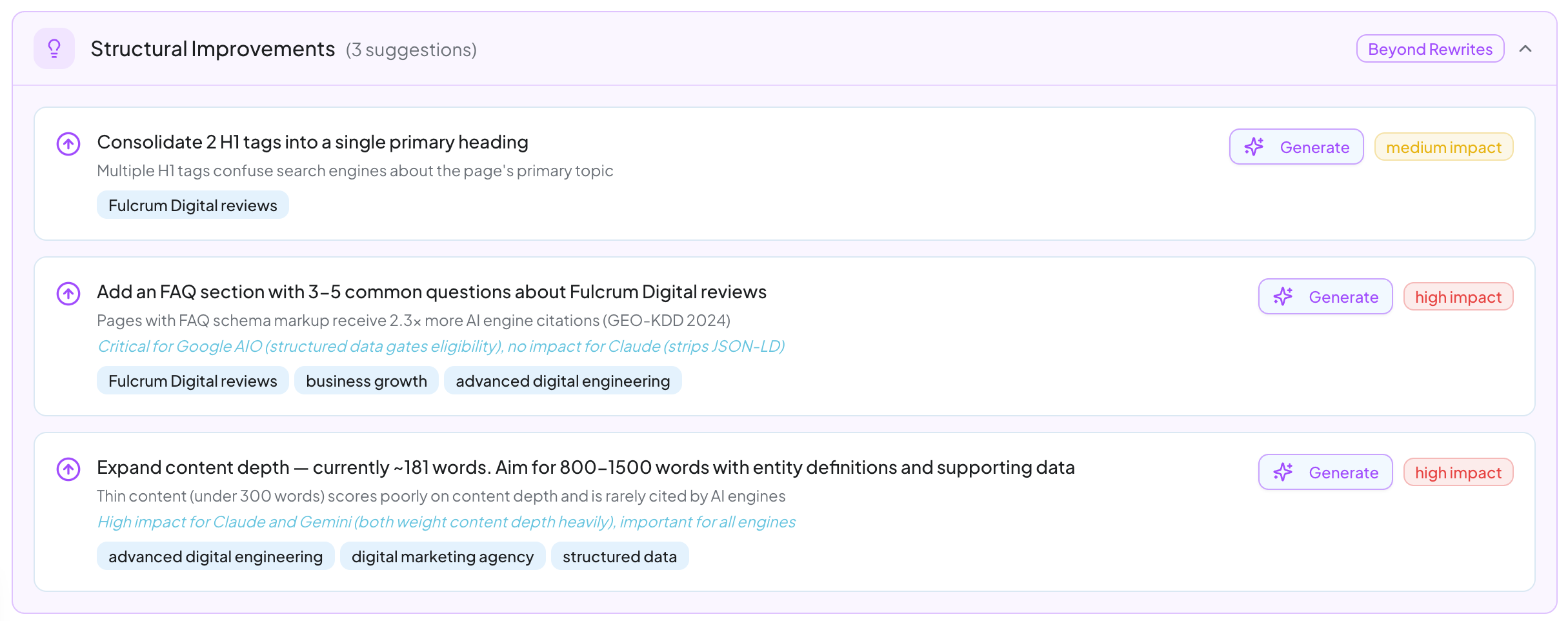
Full detail on generating and verifying these fixes lives in Generating structural improvements and schema.
Optimization Suggestions
At the very bottom of the optimizer is "Optimization Suggestions," broader rules for improving performance across every score rather than a single block: enhancing existing schema with Q&A pairs, formatting content with numbered lists and comparison tables, adding quantitative data and citations, expanding thin content. Each is tagged by severity and expands for more detail.
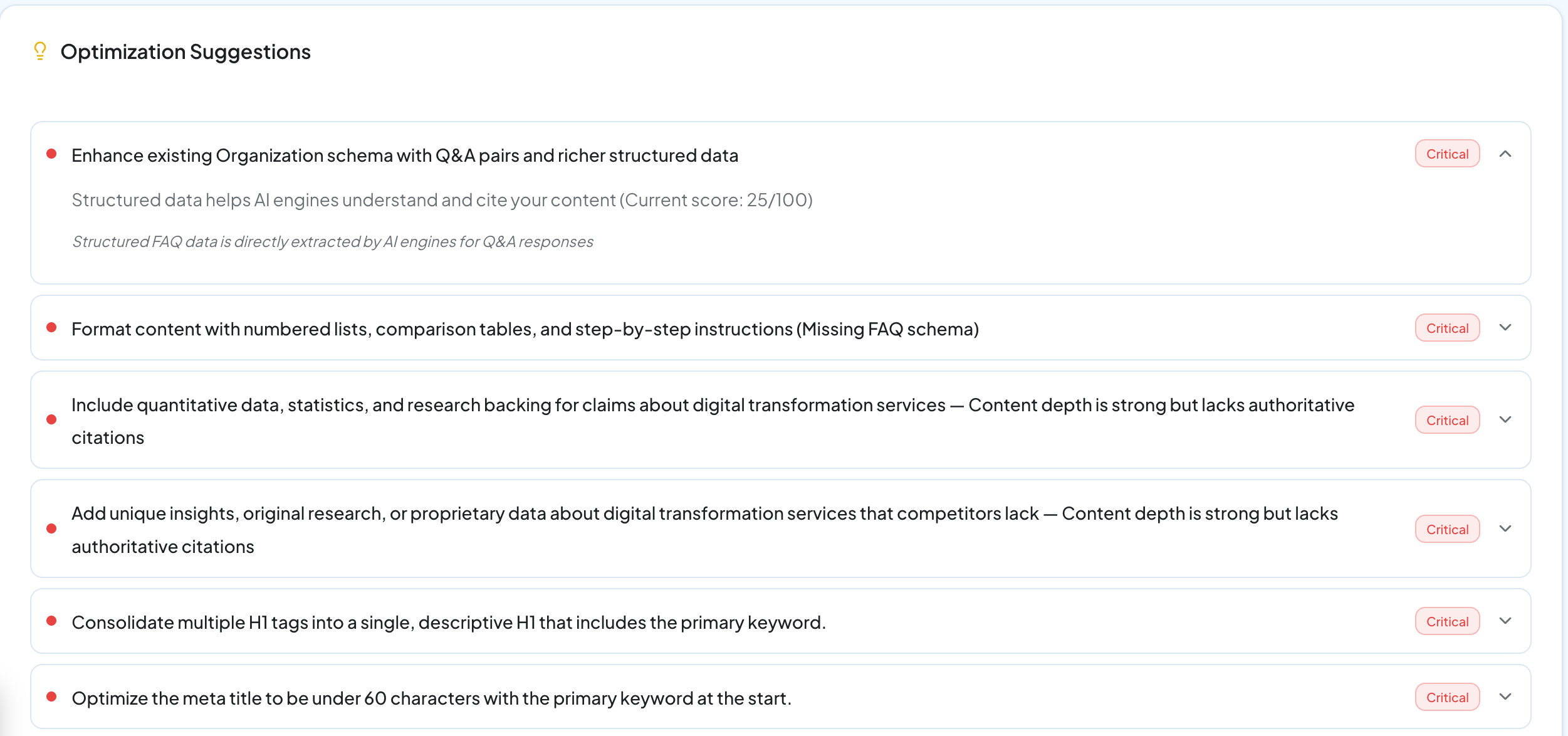
This list is the same idea as the "What We'll Optimize" slider on the Analyze report, but scoped to page-wide structural and content-depth rules rather than individual text.
Shipping the result
Select the blocks you want, or use "Select All," then "Copy All" or export as .md or .csv if your workflow is copy-and-paste. If your CMS is connected, route the batch through your approval workflow and deploy directly. "Close Optimizer" returns you to the full analysis report at any time.
Best practice
Ship the batch, then let the 30-day window run before judging the result. See The 30-day optimization cycle.